SceneSignal
SceneSignal is a Unity scene annotation tool for adding 3D notes, labels, links, areas, and paths without turning the Scene view into clutter.
SceneSignal is an editor-first scene readability and annotation tool for Unity. It helps you place notes, labels, links, areas, and paths directly in 3D space, then filter them so the Scene view stays useful instead of noisy.
Quick Answer
SceneSignal is a Unity scene annotation tool for adding notes, labels, links, areas, and paths inside the Scene view. If you are looking for Scene Signal, Unity scene notes, Unity editor markers, or a cleaner alternative to one-off gizmos for level-design review, SceneSignal focuses on editor-side readability and handoff.
The Problem
Busy Unity scenes get hard to read fast.
A few AI zones, spawn points, interaction links, review notes, and temporary debug visuals are enough to turn the Scene view into a wall of overlapping context. Teams start relying on memory, naming conventions, or one-off gizmos that only solve one problem at a time.
That usually means more time panning around the editor, more “what is this object for?” questions, and more setup mistakes that are obvious only after playtesting.
How SceneSignal Helps
SceneSignal gives you a lightweight workflow layer for scene communication and visual debugging.
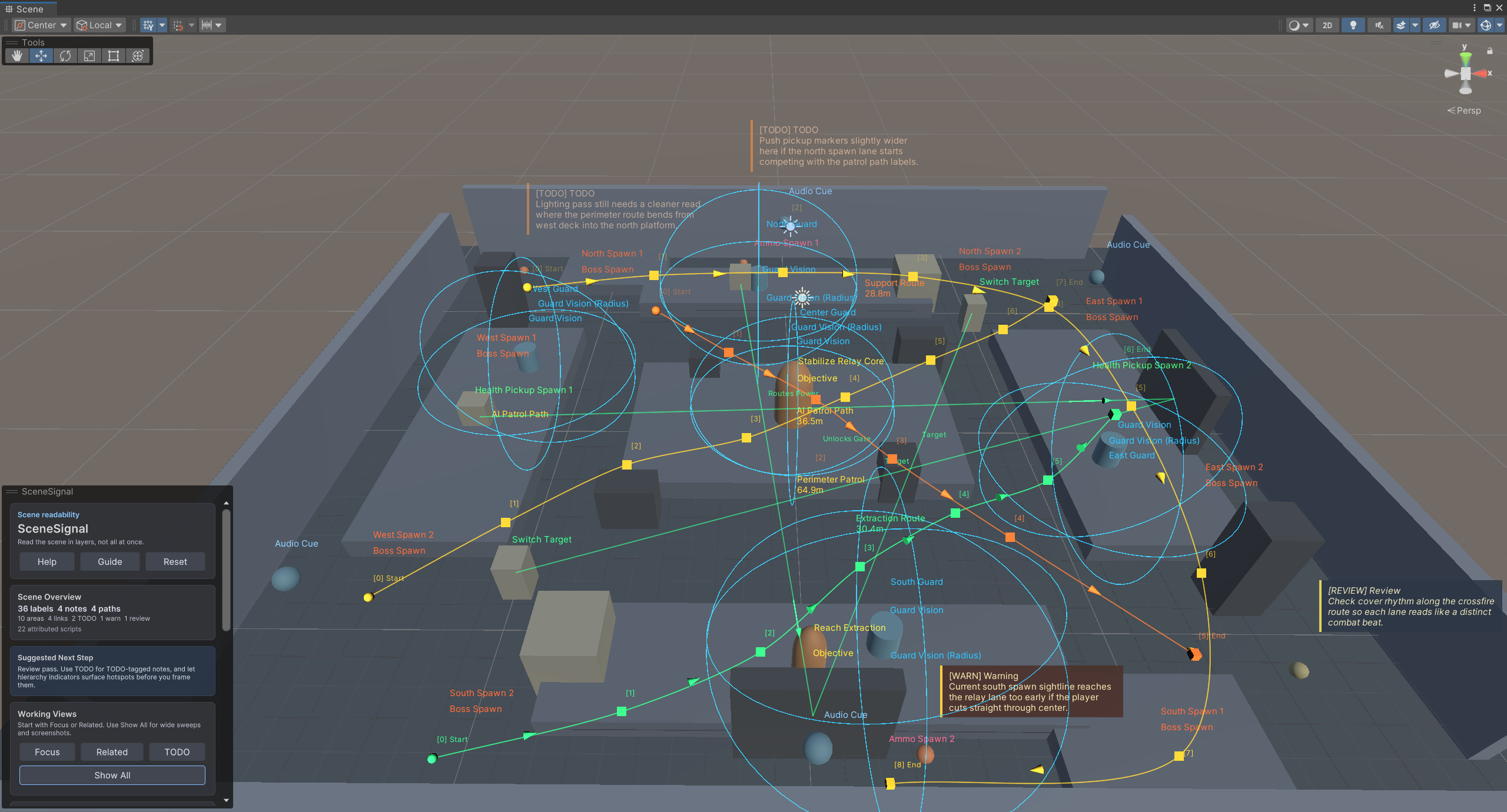
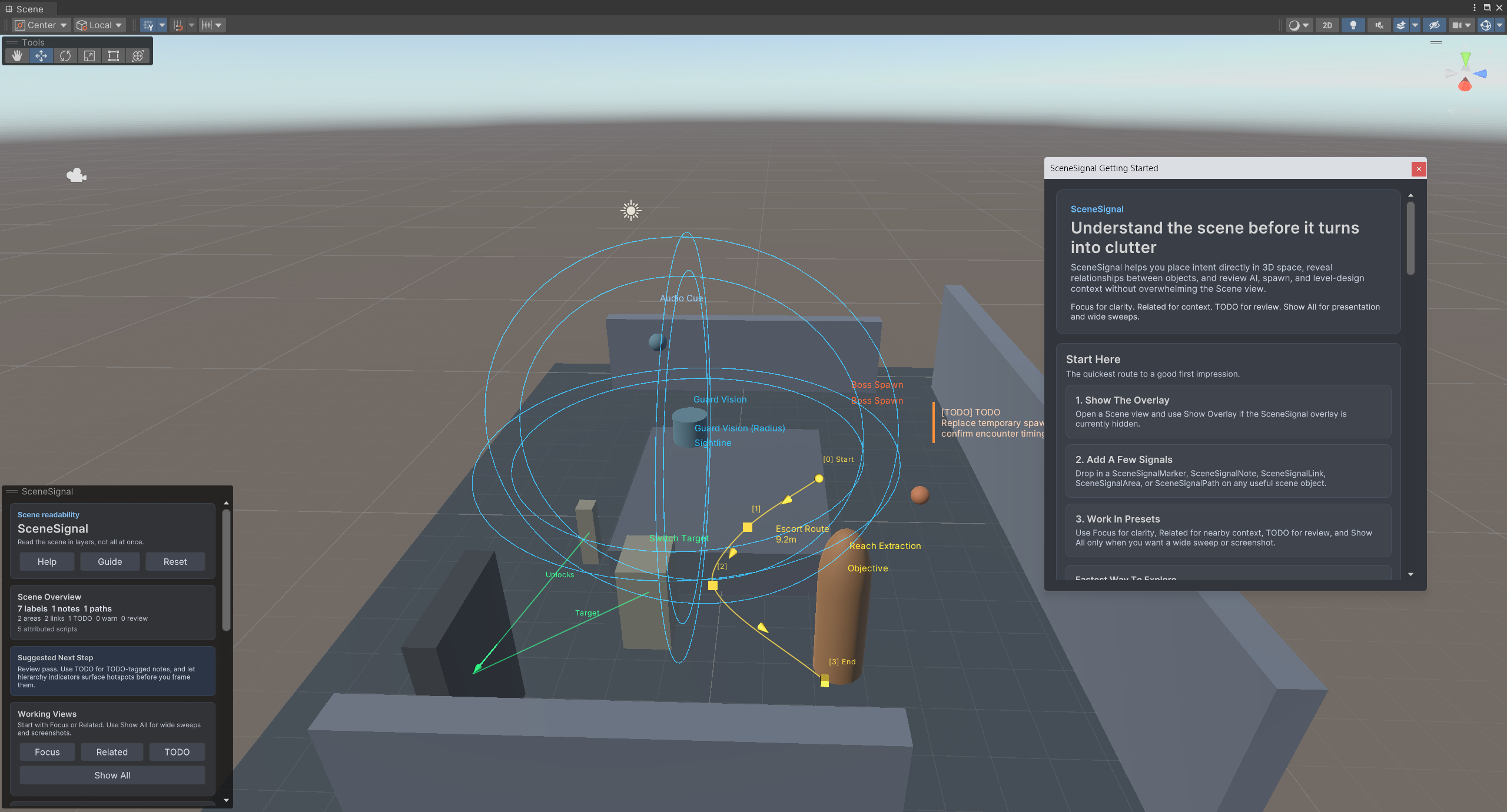
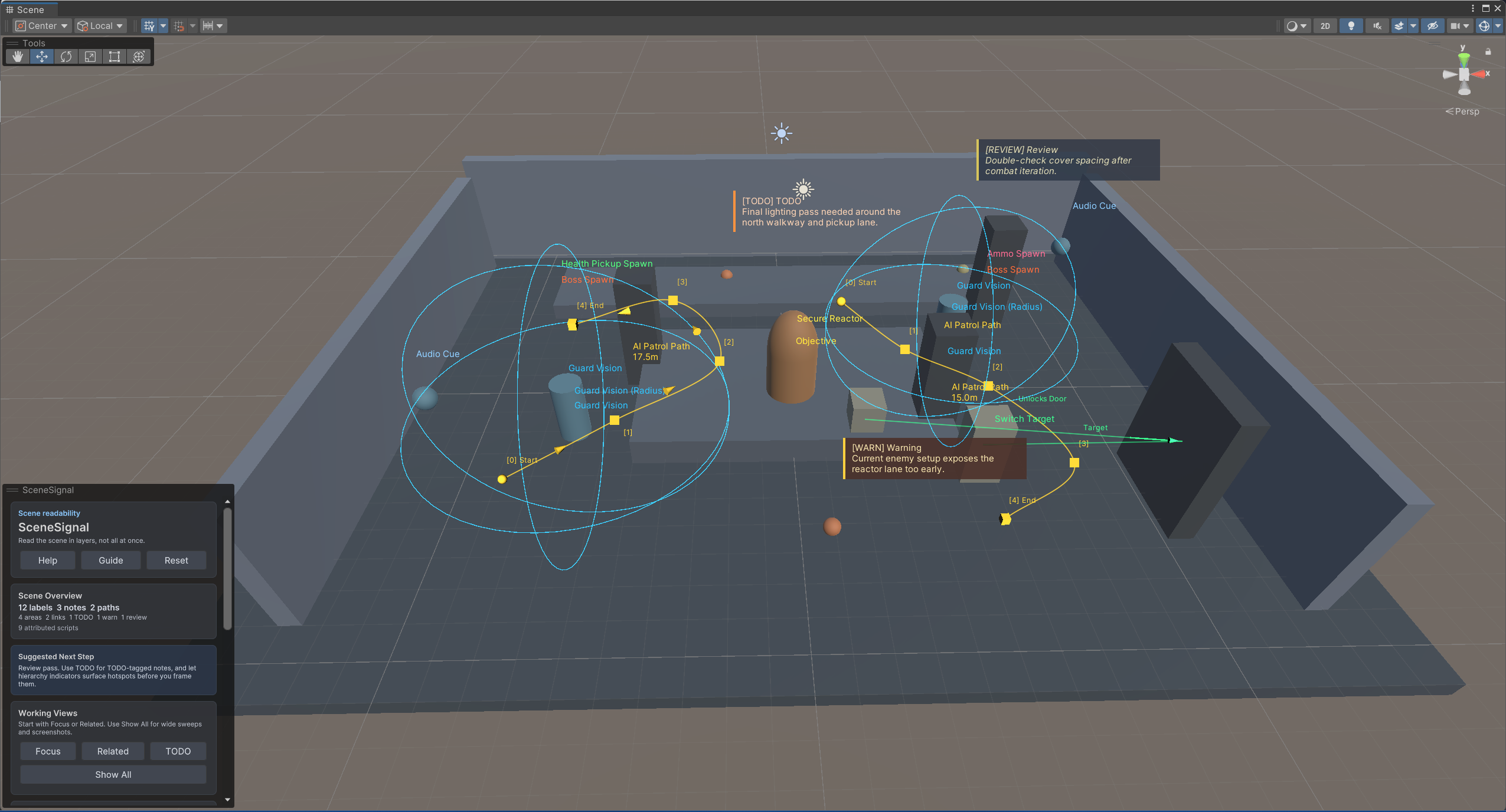
You can add a SceneSignalMarker for a readable label, a SceneSignalNote for TODO or review context, a SceneSignalLink for object relationships, a SceneSignalArea for simple ranges or zones, and a SceneSignalPath for route review.
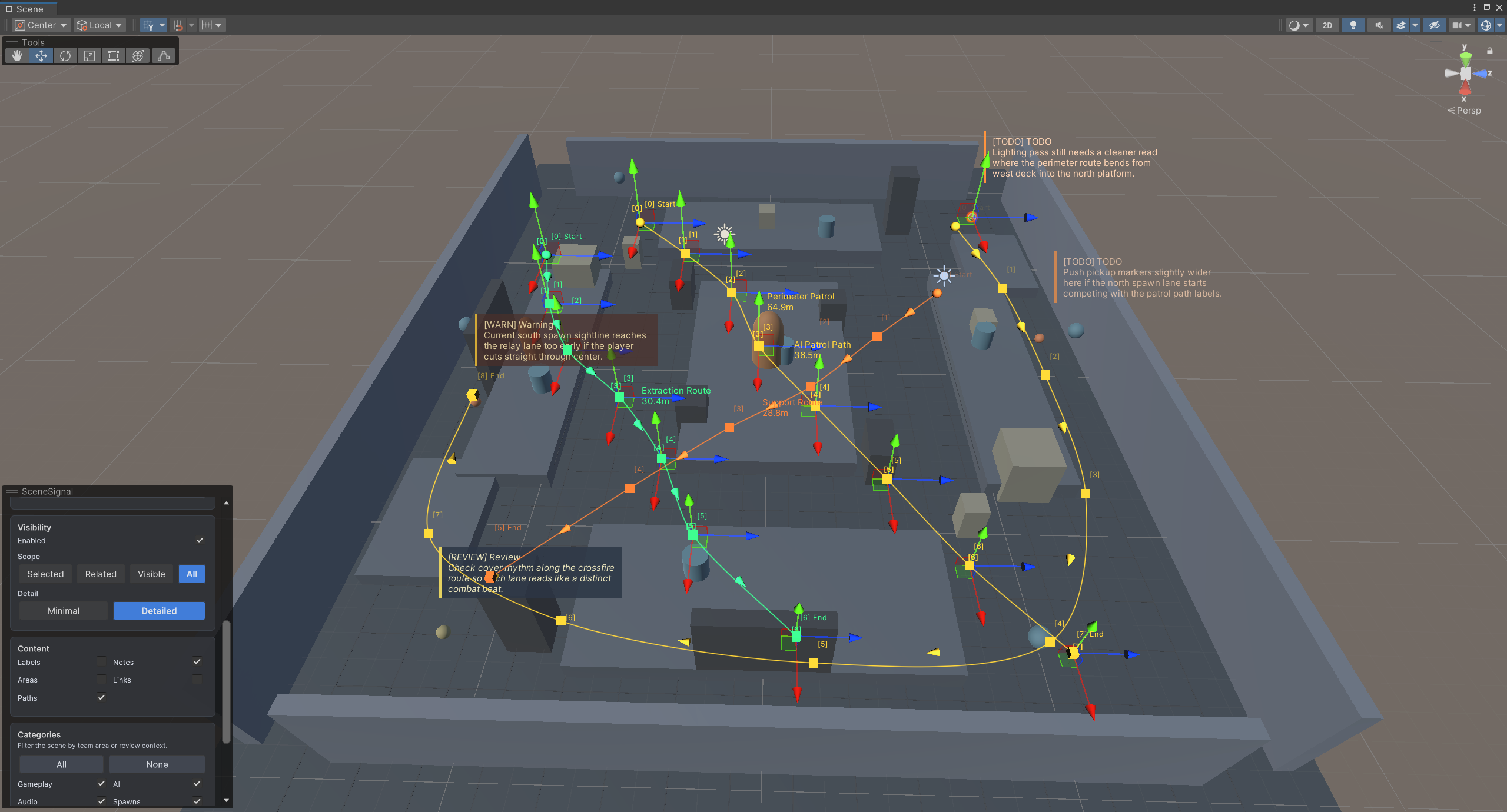
The overlay is the real control surface. Instead of showing everything at once, you can work in focused views like Focus, Related, or TODO, then switch to Show All only when you want a broad review pass or a screenshot.
If you already have useful data on your own MonoBehaviours, SceneSignal also supports attributes for labels, categories, colors, radii, links, and paths. That lets you visualize existing gameplay data without adding extra scene-only components everywhere.
Concrete Workflow and Use Cases
A level designer can drop a SceneSignalNote on cover geometry and leave a review callout like “check spacing after combat pass” exactly where the problem lives.
A gameplay programmer can add attribute-driven labels and radii to AI or spawn scripts so patrol routes, trigger zones, or review targets are visible in the Scene view without building custom gizmo code for every system.
A technical designer can use SceneSignalLink to show that a switch unlocks a door, or that a relay powers another object, which makes relationship review much easier during setup and handoff.
For route-heavy scenes, SceneSignalPath gives you a cleaner way to review travel lines, patrol loops, extraction routes, or scene flow hints. Waypoints can be adjusted directly in the Scene view, so the tool stays close to the normal Unity workflow.
When a scene gets crowded, hierarchy indicators and overlay filters help you narrow the view by category and intent instead of deleting context just to make the editor readable again.
If you need a broader scan for missing scripts, UI setup problems, or build-readiness issues after the scene pass, Project Review covers that side of the workflow.
Who It Is For
SceneSignal is for developers who already spend time inside the Unity editor reviewing scene setup and trying to make that setup easier to understand.
It fits especially well for indie teams, level designers, gameplay programmers, and technical designers working on AI, encounter setup, object relationships, and review passes.
It is not aimed at runtime debugging frameworks or transform manipulation workflows. The focus is editor-side readability and communication.
Closing Value
SceneSignal is useful when your scene already contains the answers, but those answers are scattered across objects, scripts, and temporary notes.
Instead of building another custom gizmo pass for every feature, you get one editor-first tool for labels, notes, links, areas, paths, and filtering. That makes scene review faster, handoff clearer, and busy Unity scenes easier to work in day to day.
When Not To Use It
SceneSignal is not meant to be a runtime debug overlay, a level streaming system, or a replacement for Unity’s transform and prefab workflows. It is strongest when the problem is communication inside the editor: what an object means, how objects relate, where a route goes, or what needs review before a scene handoff.
Key Features
Why Use SceneSignal?
- Understand busy scenes faster without leaving the editor.
- Keep design intent and review notes attached to real scene objects.
- Reveal object relationships and gameplay context without building custom gizmos.
- Review AI, spawn, and level-design setup in layers instead of all at once.
Who Is This For?
Screenshots
Related Tools
Explore nearby workflows and editor tools that solve related Unity production problems.
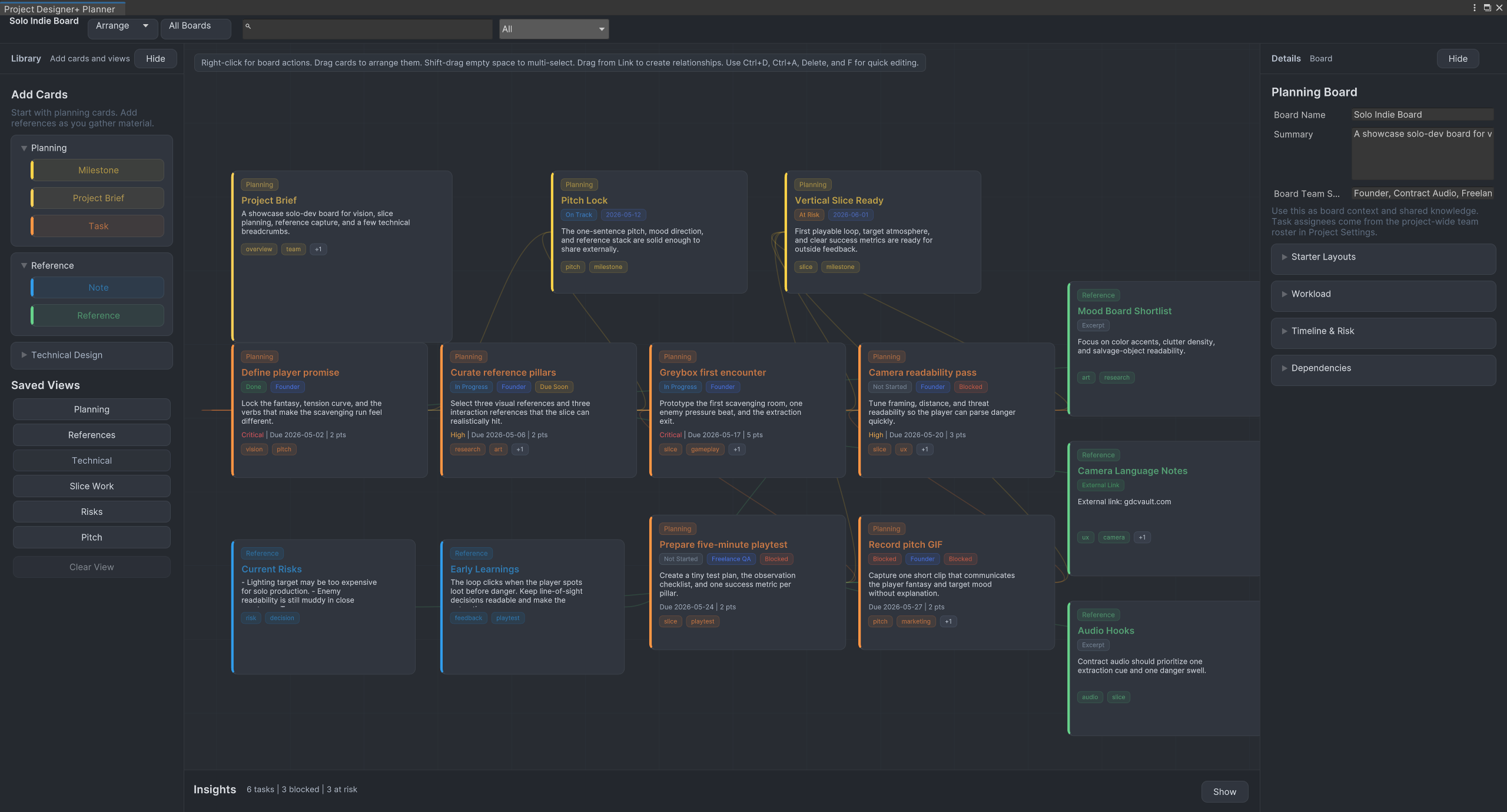
Project Designer+
Plan Unity projects visually with tasks, milestones, notes, references, workflow presets, and saved planning views directly inside the Unity editor.
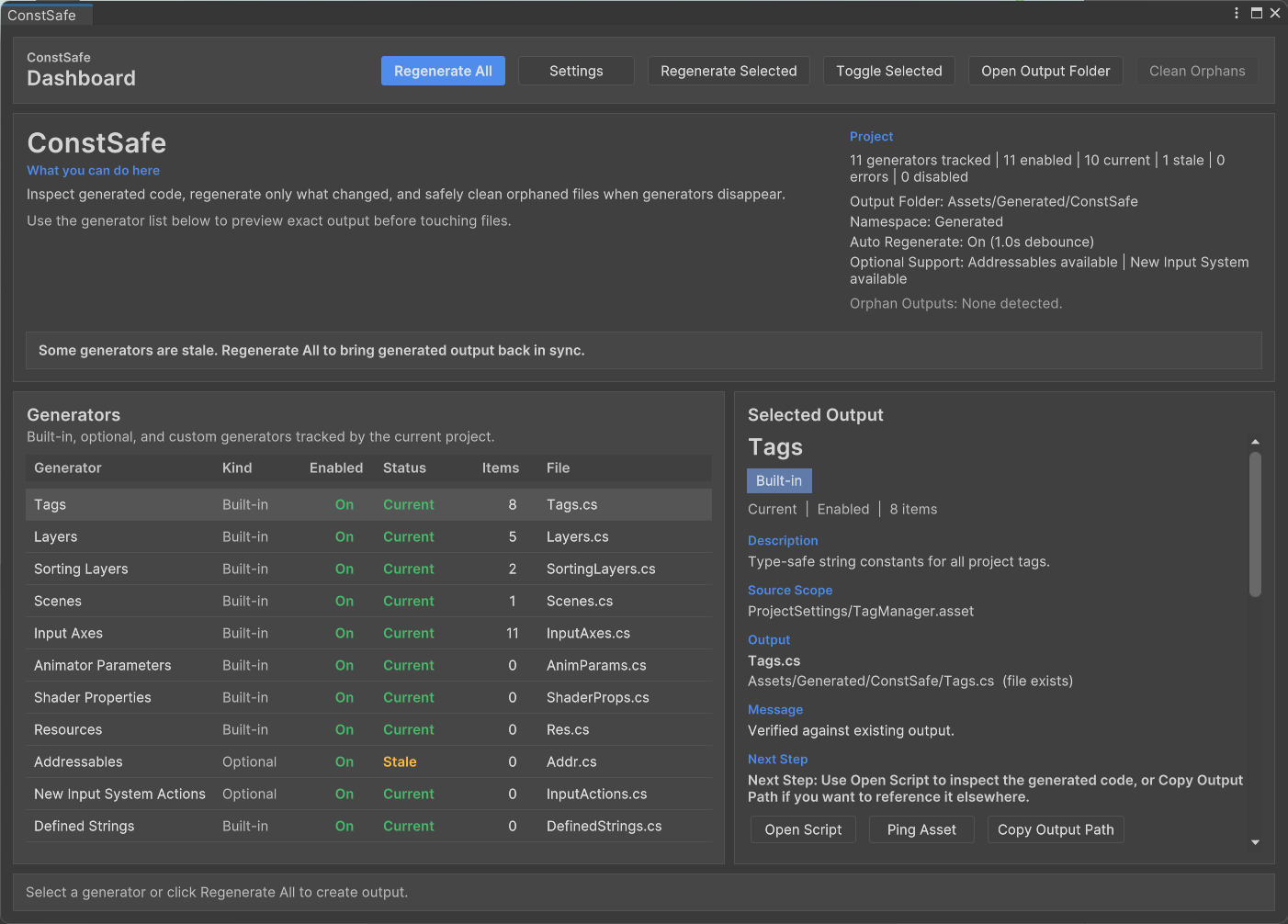
ConstSafe
ConstSafe is a Unity constants generator that creates type-safe C# references for tags, scenes, resources, animator parameters, shader properties, and more.
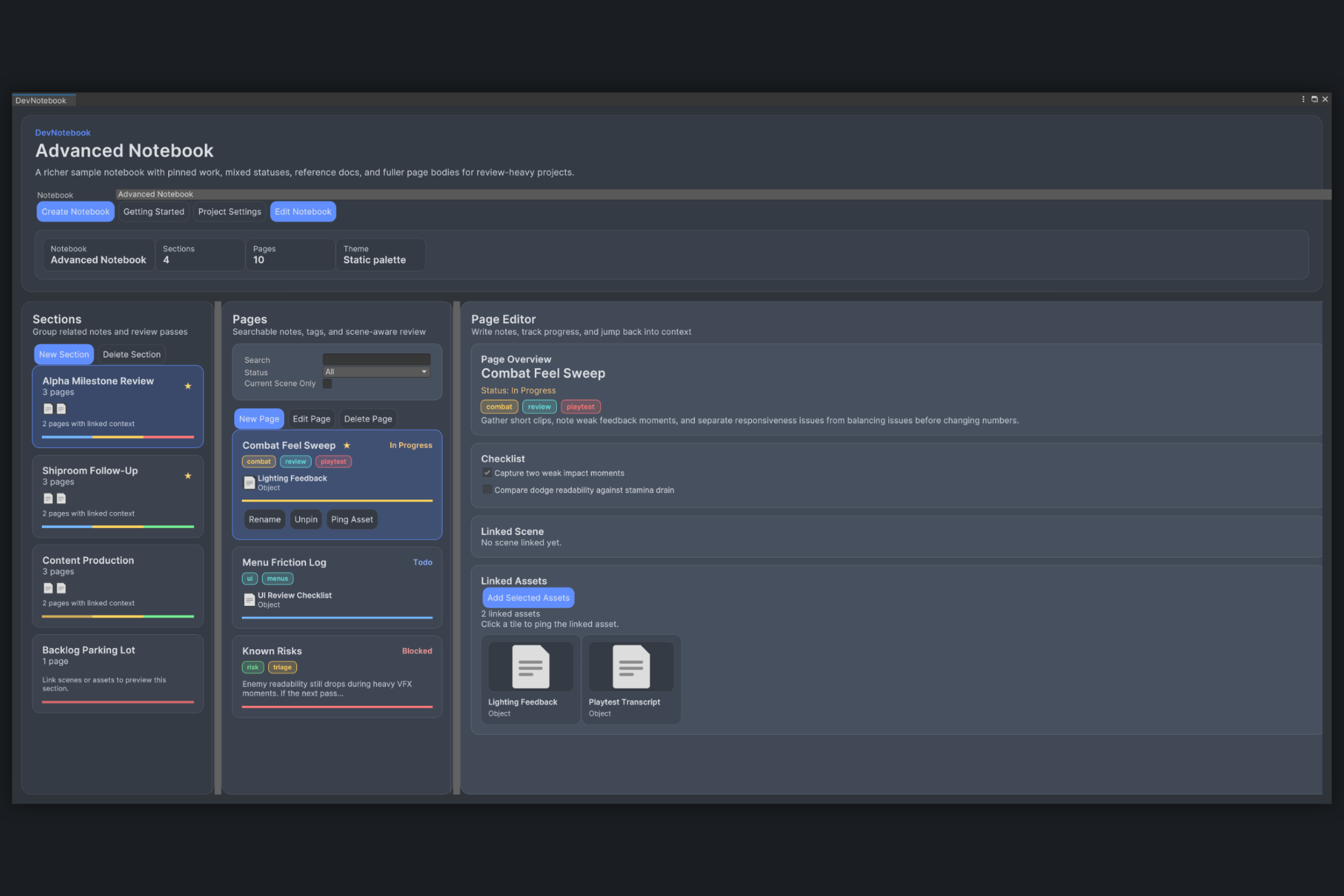
DevNotebook
DevNotebook is a Unity editor tool for keeping scene notes, asset follow-up, and review checklists attached to real project content.
Frequently Asked Questions
Is SceneSignal a runtime gizmo system?
Does it only work with components?
What can I annotate with SceneSignal?
Can I use it for path and waypoint review?
How do I control clutter in busy scenes?
What Unity versions does it target?
Get SceneSignal
Available on the Unity Asset Store. Try it in your next project.